
How to Use Quick View for Products?
Quick View lets your visitors preview a product - gallery, price, options and Add to Cart - in a popup, without leaving the shop page, a product archive, or whichever page a products listing is placed on. It speeds up browsing and keeps visitors on the listing instead of sending them back and forth to the full product page.
By default Quick View uses TheGem's built-in popup layout. If you need full design control over the popup - a different gallery, extra content, related products, custom tabs etc. - you can instead assign it a Single Product template built with TheGem Templates Builder.
Enabling Quick View on the Shop Page & Product Archives
To enable Quick View for the main shop page and product archives (categories, tags etc.) proceed as follows:
Go to Theme Options -> WooCommerce -> Shop Grid
Enable the "Quick View" toggle
Once enabled, a Quick View icon/button appears on products in the shop loop and on all product archive pages using the built-in grid. 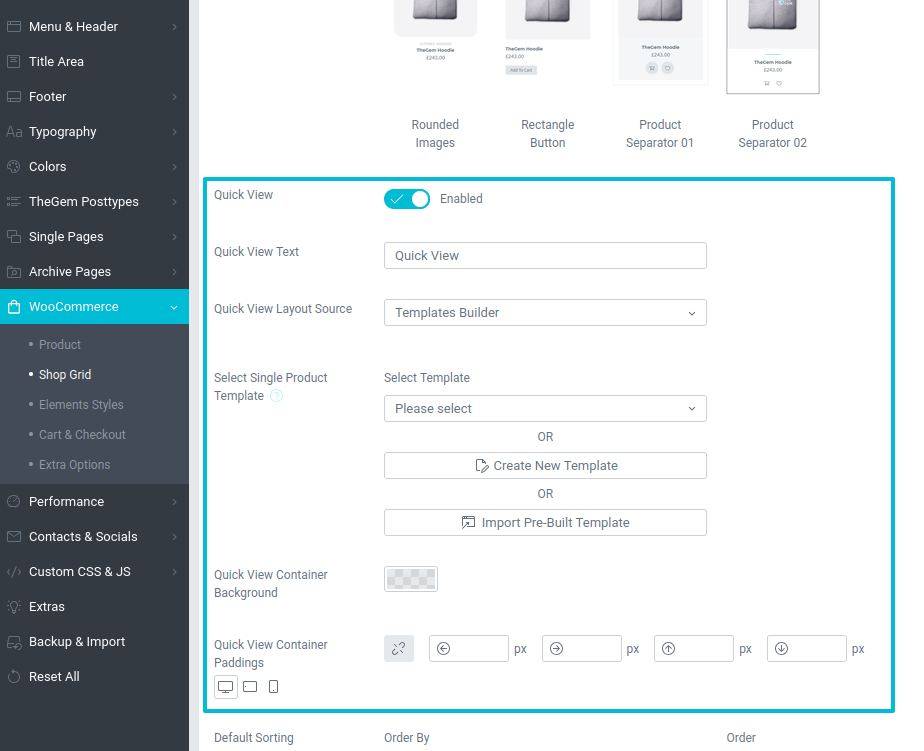
Enabling Quick View in Products Grid & Products Carousel
Quick View can also be enabled on a per-element basis when you add a "Products Grid" or "Products Carousel" element to a page with Elementor:
Edit the page and add (or select) the "Products Grid" or "Products Carousel" element
Go to the Content tab -> Additional Options
Enable the "Quick View" toggle
Elementor: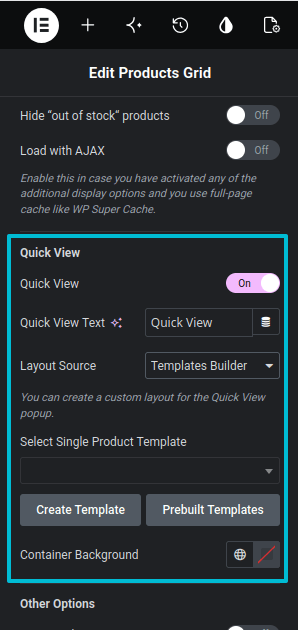
WPBakery: 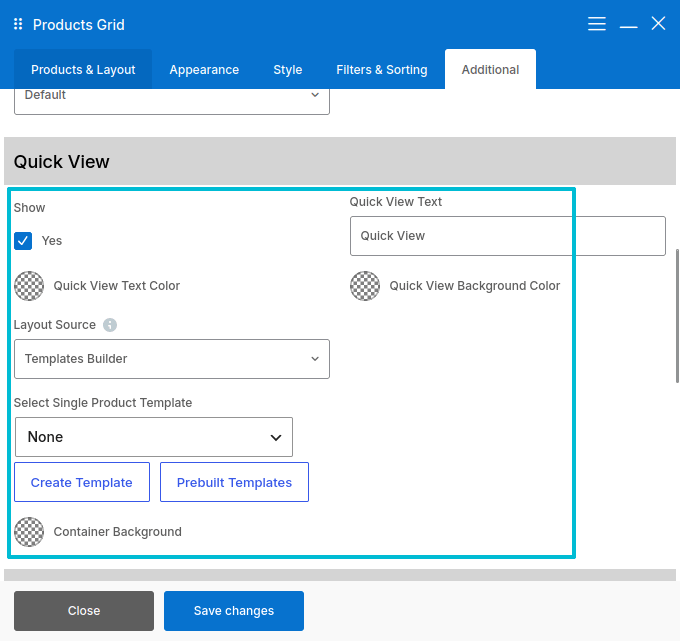
NOTE: this setting only affects products displayed by this particular element — it is independent from the Quick View setting in Theme Options.
Using a Custom Layout for Quick View (Templates Builder)
Instead of the built-in popup layout, Quick View can display a Single Product template built with TheGem Templates Builder. If you don't have a single product template yet, see "Creating New Single Product Template".
In Theme Options (Shop Page & Product Archives)
To use a custom layout for Quick View on the main shop page and product archives proceed as follows:
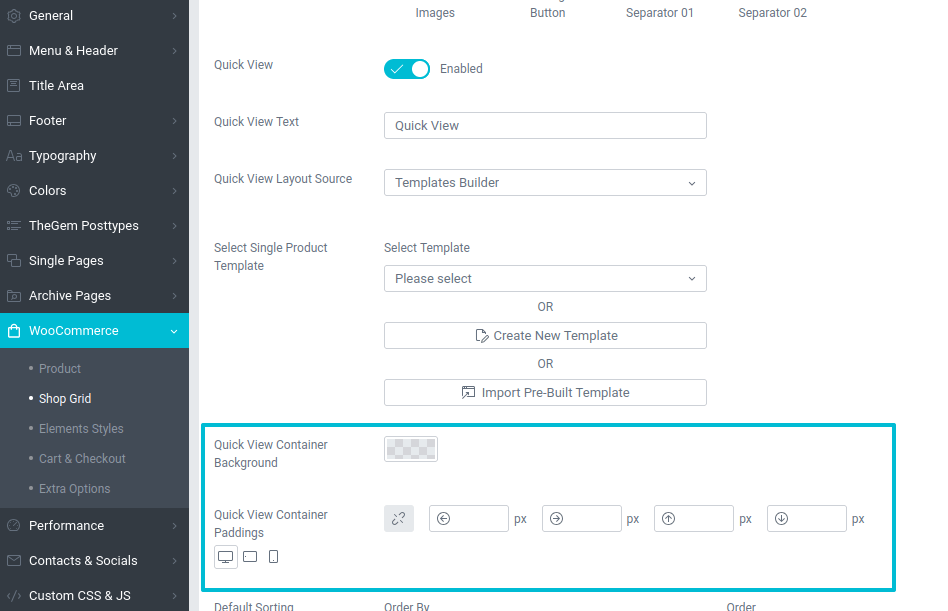
Go to Theme Options -> WooCommerce -> Shop Grid
Make sure "Quick View" is enabled
In "Quick View Layout Source" select "Templates Builder"
In "Select Single Product Template" choose a template you wish to apply, or click "Create New Template" / "Import Pre-Built Template" to create a new one, or "Edit Template" to edit the currently selected template
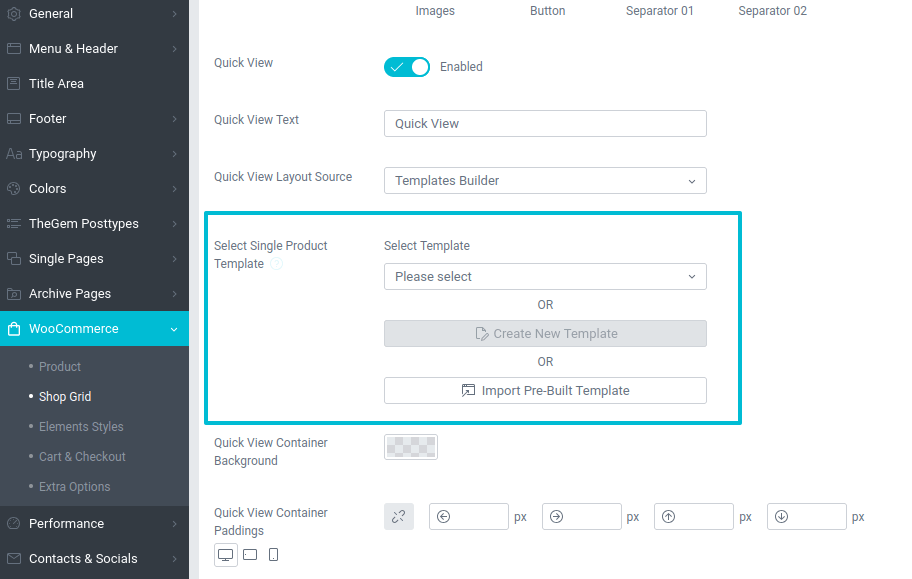
- "Quick View Container Background" — sets the background color of the Quick View popup
- "Quick View Container Paddings" — sets responsive inner spacing (desktop, tablet, mobile) around your template inside the popup
In Products Grid & Products Carousel Widgets
To use a custom layout for Quick View in a "Products Grid" or "Products Carousel" element proceed as follows:
Edit the element, go to Content tab -> Additional Options, and make sure "Quick View" is enabled
In "Layout Source" select "Templates Builder"
In "Select Single Product Template" choose a template you wish to apply, or click "Create Template" to build a new one (this opens Templates Builder in a new browser tab)
Optionally, set "Container Background" to define the popup's background color
Elementor: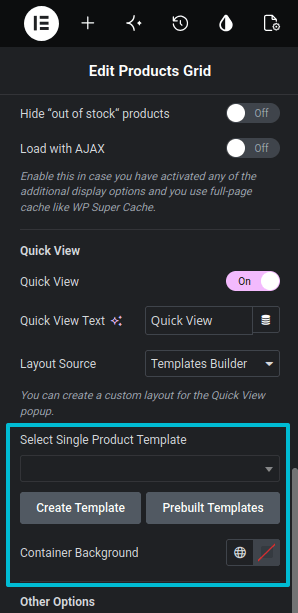
WPBakery: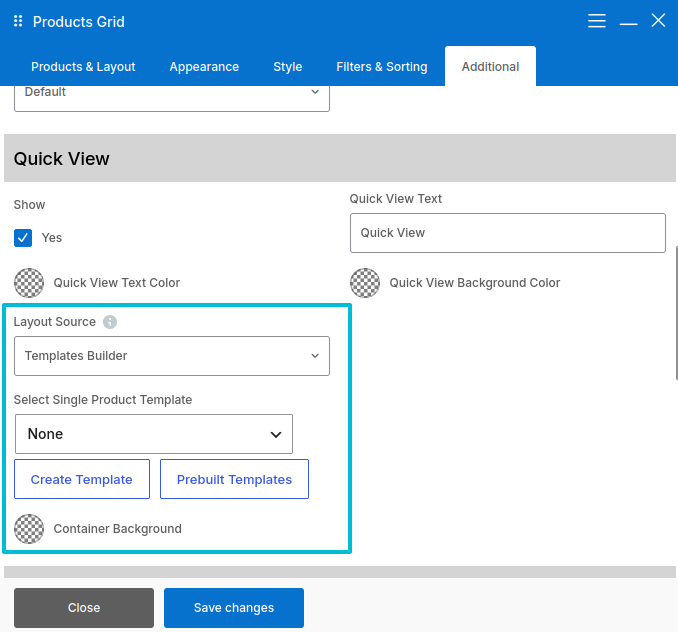
NOTE: if you use "Create Template" to build a new template, it opens in a new browser tab. Once you're done, return to the tab where you were editing the element — your new template will appear in "Select Single Product Template".